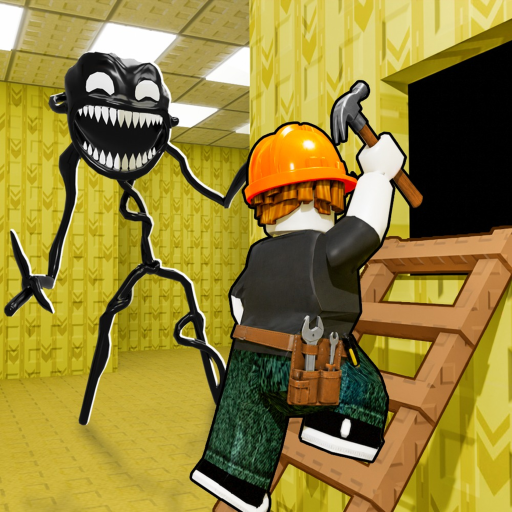
Build Your Backrooms Best Settings for Clear Maze Building
Build Your Backrooms best settings keeps the build grid readable, explains the verified R key, and avoids unsupported device-control claims. Use live checks.
This Build Your Backrooms Best Settings page starts from the evidence available for the current game and keeps changing values in the live interface. Confirm update-sensitive details on the official Roblox experience.
Evidence note: The available sources do not support a complete current roster, ranking, value table, or device-specific rule for this topic.
No game-specific graphics or device preset was verified, so the best settings are the ones that keep the build grid readable and movement stable on your device. Only one game-specific key is confirmed in current evidence: R rotates a selected maze piece in a keyboard demonstration.
Set for Clear Placement Feedback
Choose Roblox graphics and camera settings that let you see room edges, connection points, and placement feedback. Lower visual load if motion stutters while moving a piece; increase it only when the grid stays responsive.
Use the Confirmed Rotation Control Carefully
Current community footage shows R rotating the selected maze piece on keyboard. Move and remove actions are visible too, but their exact bindings were not verified, so follow the prompts shown by your device rather than copying a desktop-only instruction.
| Symptom | Check first | Evidence boundary |
|---|---|---|
| Choppy build view | Roblox graphics level | Device dependent |
| Hard-to-see openings | Brightness and camera angle | Personal display choice |
| Piece will not rotate | On-screen prompt; R on keyboard footage | Other devices unverified |
| Piece will not place | Room connection and slot feedback | May not be a setting issue |
Tune One Option at a Time
Change one Roblox setting, return to the build view, and test selecting, rotating, and placing a starter piece. This isolates whether a change helped and avoids confusing a control issue with a connection or slot restriction.
- Check frame pacing while moving a piece.
- Keep enough brightness to distinguish walls and openings.
- Confirm the camera does not hide placement feedback.
- Restore a setting if inputs become less predictable.
Treat Platform Advice as Conditional
The archived official page does not provide a supported-platform matrix or device-specific control guide. Use the current Roblox client prompts as authority and avoid assuming that keyboard, touch, and controller layouts share the same bindings.
For this topic, the safest habit is to compare the live result with the expected step before making another purchase. A practical settings check that distinguishes a verified keyboard control from device-dependent roblox options works only when each connection and placement is accepted by the current server. If the interface disagrees with an older tutorial, follow the interface and keep the unverified value out of your notes.
A useful field check is to change one variable and repeat the same short observation. That keeps a practical settings check that distinguishes a verified keyboard control from device-dependent Roblox options tied to something visible instead of a theory about hidden rates. Record the room connection, current capacity, displayed cost, and result separately so a later update is easy to spot.
Do not treat silence in the official description as permission to fill a gap. For a practical settings check that distinguishes a verified keyboard control from device-dependent Roblox options, unknown prices, caps, stats, controls, and pathfinding details should stay unknown. You can still make progress by following placement feedback, testing a compact route, and choosing the next action from the bottleneck shown live.
The practical advantage of this method is reversibility. When a practical settings check that distinguishes a verified keyboard control from device-dependent Roblox options is tested in small steps, a failed connection or weak layout can be corrected without rebuilding everything. Pause after each placement, confirm the maze still functions, and spend only when the next purchase has a clear job.
Use community videos as interface demonstrations rather than patch notes. They can show where a tool appeared or how a tutorial flowed at recording time, while the official Roblox page and current game remain the authority. That distinction is especially important for a practical settings check that distinguishes a verified keyboard control from device-dependent Roblox options, because balance and menus may change independently.
Frequently Asked Questions
What are the best settings for Build Your Backrooms?
Use settings that keep the grid readable and placement responsive; no single official preset was verified.
What key rotates a maze piece?
R is shown rotating a selected piece in a current keyboard gameplay demonstration. Follow the live prompt on other devices.
Are mobile and controller controls the same?
That was not verified. Use the control labels shown by the current Roblox client on your device.